
The Transcripts tab lets you read your data one respondent at a time. You see every answer a participant gave, including any follow-up questions asked by the AI Moderator and their responses.
How to use it
- Open your study and go to Results.
- Click the Transcripts tab.
- Use the arrows at the top-right to page through respondents.
Each respondent appears as a card with their demographics, response time and sentiment, alongside their answers. To export transcripts, select respondents (or click Select all) and choose One PDF or Separate PDFs.
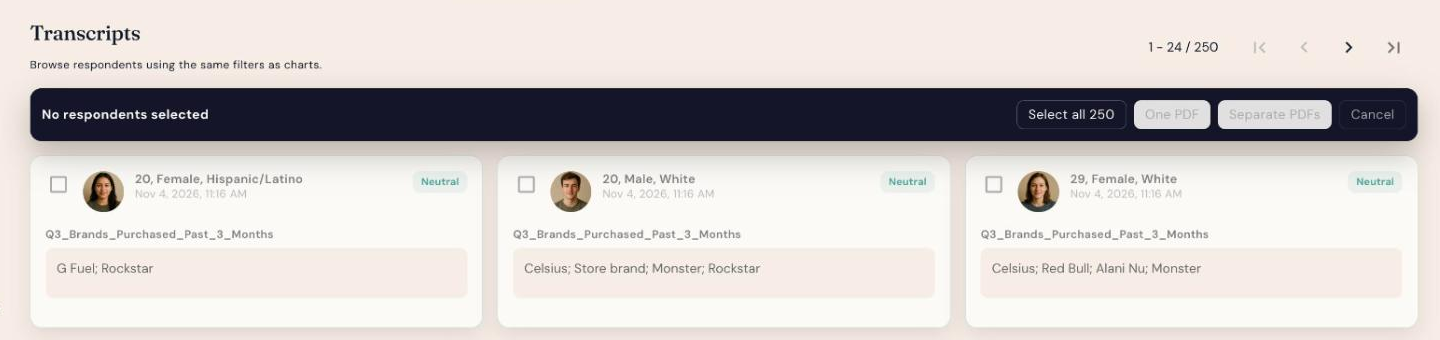
Transcripts use the same filters as your charts. Apply a filter (from the Filters panel on the right) to browse only the respondents in a segment.
When to use it
- Understand the full context behind an interesting answer
- Read AI-moderated follow-ups alongside each original answer
- Pick a respondent to interview with Chat with Individual